

Working time models
Working time models allow you to define target hours for employees and automatically calculate overtime. Time models can be assigned to one or more employees.
Using working time models
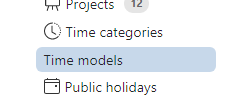 Permissions: Only administrators, time managers, or user managers of the time tracking system can
view and edit time models. The menu item Time models is
displayed exclusively for these users.
Permissions: Only administrators, time managers, or user managers of the time tracking system can
view and edit time models. The menu item Time models is
displayed exclusively for these users.
Create and modify a working time model
- In the Adminstration menu, go to Time models.
- Click Create new time model or select an existing time model to edit.
-
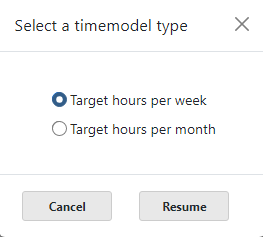
Choose between:
- Target hours per week: Specify the daily target working hours or the weekly target working hours (e.g., 40 hours/week).
- Target hours per month: Specify the monthly target working hours.
- Optional: Define public holidays and non-working days using the holiday calendar: The Public holidays link takes you directly to the holiday calendar with non-working days.
Assign a working time model to an employee
- Go to the Users menu and select an employee to change.
- In the Time model tab, use Assign time model to assign a working time model to the employee.
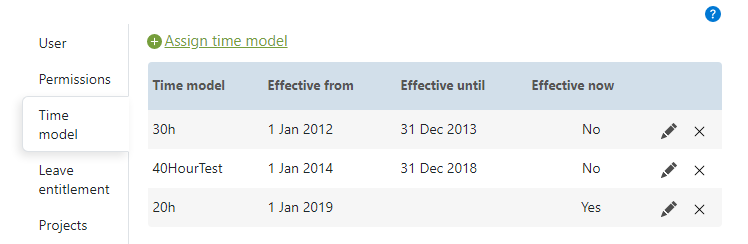
A time model requires a Effective from date. From this date onward, the time model will be used for overtime calculations. The optional Effective to date defines the end of the time model's validity. Avoid temporal overlaps between time models, as they can lead to incorrect calculations – appropriate warning messages will be displayed.
If the employee only has one time model, it is sufficient to accept the suggested Effective from date and leave the Effective to date empty.
An employee can also be assigned multiple time models consecutively. In this case, the Effective to date must also be specified. This should create a sequence of time periods without overlaps, each with a different model in effect.
JEffective now indicates which model is currently active. For employees with an active working time model, the timesheet displays not only the actual hours but also the planned hours and overtime.
Overtime Balance Transfer to the New Month (Hour Balance Carryover)
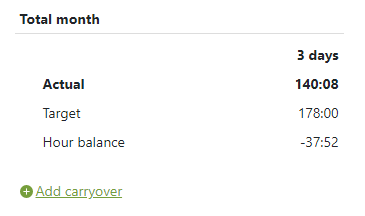
In the monthly view of the timesheet, you can transfer the hourly balance from the previous month. To correctly add the hour carryover, click Add carryover in the totals section at the bottom of the timesheet. The appropriate hour balance from the previous month is automatically suggested as the input value.
To ensure you don't forget the transfer, the time tracking system will remind you with the first time entry in the new month. You can permanently disable this reminder about transferring the hour balance by unchecking the "Do not display again" checkbox.
 Back to Overview